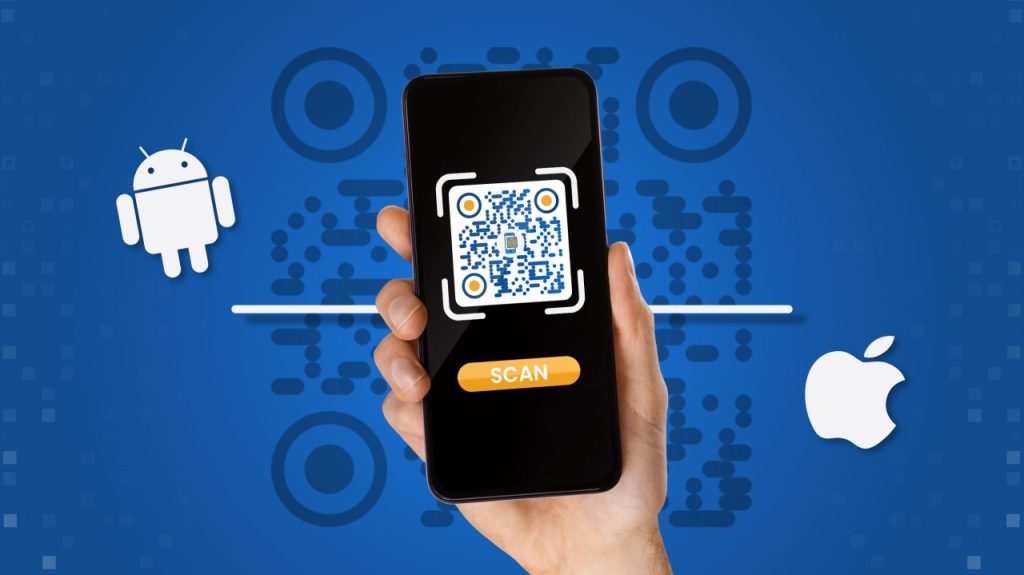
Did you know that you can scan DIRCO apostille certificates using your smartphone for a visa application? Both Android and iOS smartphones come with pre-loaded applications that enable document scanning.
Whether you’re using Global Apostille to scan your DIRCO Apostille certificate or creating your own digital archive, the following tips will help you to scan high-quality digital copies that meet government expectations.
What Is a scan of DIRCO Apostille certificate?
A DIRCO apostille certificate scan is a high-resolution digital version of your document that has been officially legalised by the Department of International Relations and Cooperation (DIRCO) with an apostille certificate.
The scan shows both:
- the original document, and
- the attached Apostille page with the official seal and signature.
The DIRCO apostille is always bound with a green ribbon to your original document. Careful handling is required when scanning a bound apostille certificate because the apostille and the original document must never be separated. The best approach is to use a mobile scanning app that allows you to photograph each page sequentially without removing the binding.
For flawless digital copies of your DIRCO Apostille certificate, follow these steps:
-
Choose the Right Scanning App
Avoid standard photo apps, as these result in poor contrast and uneven lighting. Instead, use mobile apps designed specifically for documents that can automatically detect page edges, flatten curves and convert the output directly into a clear, multi-page PDF. Several free software apps are also available to download and are compatible with most smartphone models.
-
Tricks for Better Quality Scans
Proper Lighting: Place the document on a flat, non-reflective surface, such as a dark desk or table. Make sure the light is coming from the side to avoid casting shadows from your phone or the binding ribbons over the text. Take photos facing the light to prevent your shadow from falling on the paper. If available in the app, use the camera flash to illuminate the paper.
Remove Glare: If your certificate has shiny seals or a sticker, hold your phone at a slight angle or turn off the flash to prevent glare and washed-out text.
-
Handle the Binding Carefully
Do Not Remove the Ribbon/Staples: Never remove the staples, ribbons or seals from a document that has been apostilled by DIRCO. These features link the apostille certificate to the underlying document. Damaging them invalidates the document’s authenticity, meaning it will be rejected by foreign authorities.
-
Scan in Chronological Order
Page 1: The Apostille Certificate itself (the official cover page).
Page 2 and onwards: The underlying official document (e.g., Birth Certificate, Police Clearance, SAQA Certificate).
Capture the front and back of the pages if there are stamps, signatures, or important notes on the reverse.
5. Image Quality Checklist
To maximize the chance that the embassy will accept your documents, make sure that each scanned files meets the following guidelines:
- The document should appear flat, without any visible folds or creases.
- All four edges of the documents must be correct—make sure that no signatures, digits, or seals are cut off!
- Any words and numbers on the apostille certificate should be clear and readable.
- The documents should be scanned in colour so every element is visible and clear.
-
Optimal files format saving
Ensure all text and the official stamps/signatures are fully visible and readable in your app’s preview.
Choose PDF format: This is generally the industry standard for archiving and sharing multi-page documents.
Export and save as a single: combined PDF rather than multiple individual images.
Check the File Size: Ensure the document is compressed to a manageable size (e.g., under 5 MB) if you plan to email it or upload it to international government portals.
Global Apostille Scan service
Our Scan of Apostille certificate service allows you to receive a high-quality digital copy of your Apostilled document directly to your email. It’s a fast and convenient way to access, store, and share your legalised paperwork online —
You’ll receive it securely as a PDF file sent directly to your email. The scanned Apostille is ideal for digital submissions, and personal record-keeping. If you would like to benefit from our apostille services or obtain a quote, please get in touch:
Tel: +27 12 348 3134;
Mobile: +27 81 347 6060;
Email: info@apostillelegalisation.co.za